Practice Studio — screen mockups
Five screens drawn at the Galaxy Z TriFold's real unfolded size (2160 × 1584 px, 204.8 × 150.2 mm). Every fret and key is placed at its true millimetre position. Pink numbers are for comments: just say e.g. "A5 too busy" or "B4 make bigger". Faint dashed lines are the two folds.
Plan + critique: https://practice-plan.arnao.ai/
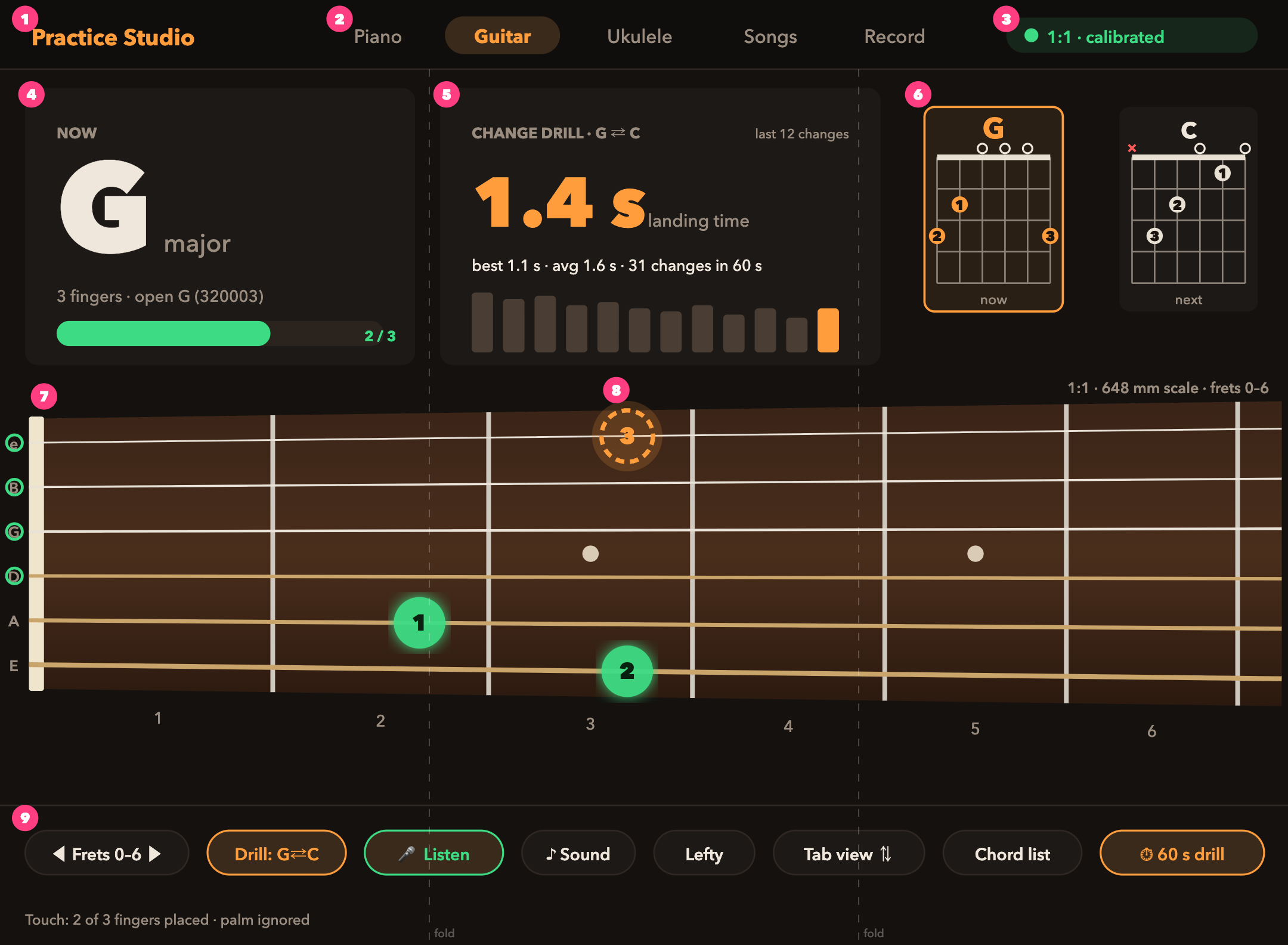
Screen A — Guitar — fingering trainer (1:1, open G, G⇄C drill)
Full-size image: https://practice-plan.arnao.ai/mockups/screen-A.png
- A1 App name
- A2 Instrument tabs
- A3 Scale status (tap to re-calibrate)
- A4 Current chord + fingers placed (2 of 3)
- A5 Change drill: landing time, best/avg, last 12 changes
- A6 Chord boxes: now (highlighted) + next
- A7 1:1 neck, nut → 6th fret, 648 mm scale; open/mute markers; tab orientation (high e on top)
- A8 Target finger: green = placed, dashed orange = still needed
- A9 Controls: fret window, drill, mic listen, sound, lefty, view flip, chord list, 60 s drill
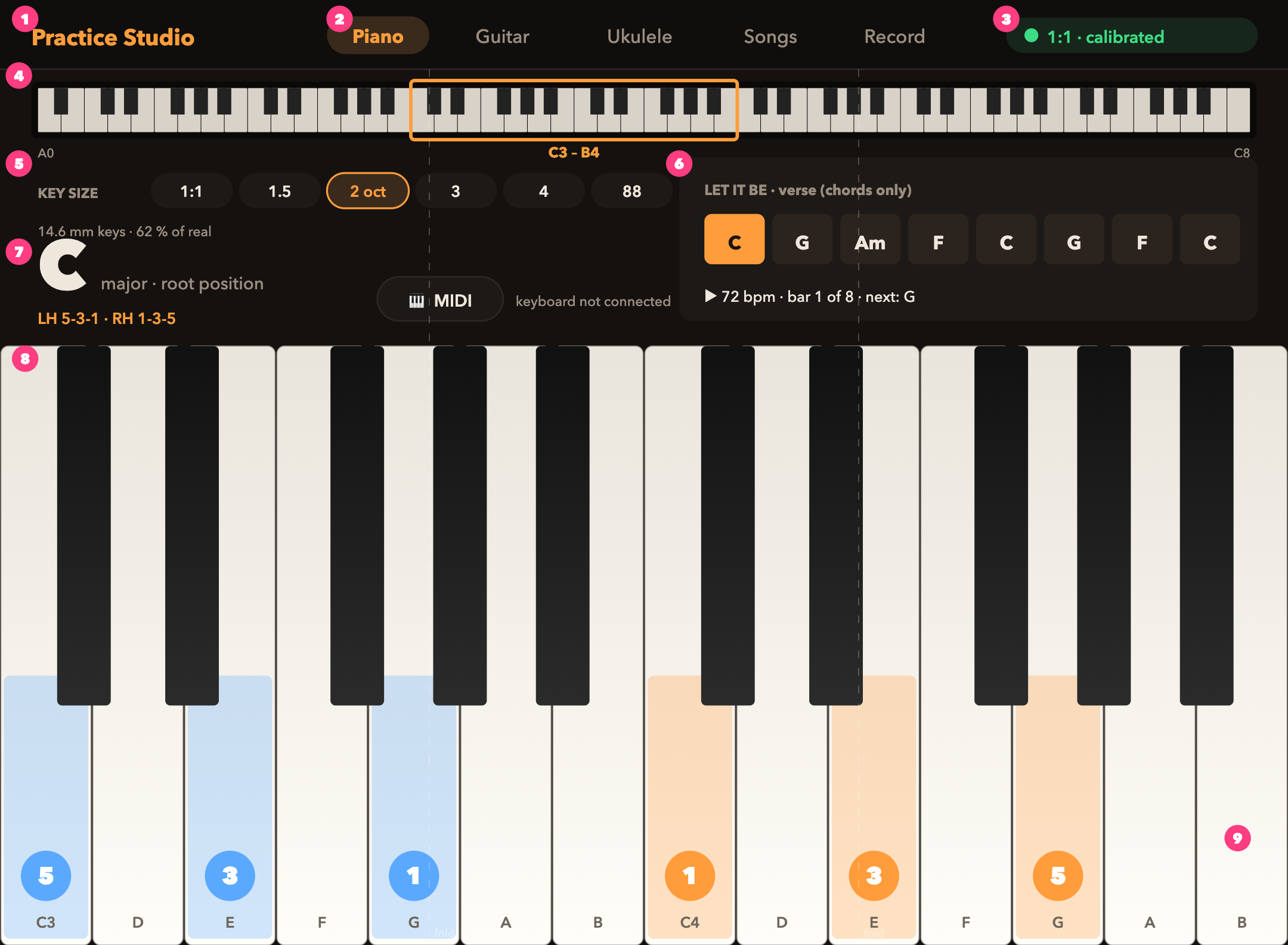
Screen B — Piano — 2 octaves, C major, Let It Be progression
Full-size image: https://practice-plan.arnao.ai/mockups/screen-B.png
- B1 App name
- B2 Instrument tabs
- B3 Scale status
- B4 88-key mini-map; orange box = visible range (drag to move)
- B5 Key size slider: 1:1 · 1.5 · 2 oct · 3 · 4 · 88
- B6 Song strip: chords only, current bar highlighted, tempo
- B7 Chord name + hand fingering; MIDI keyboard connect
- B8 Keyboard: 14.6 mm white keys; blue = left hand, orange = right hand, finger numbers
- B9 Note labels on keys
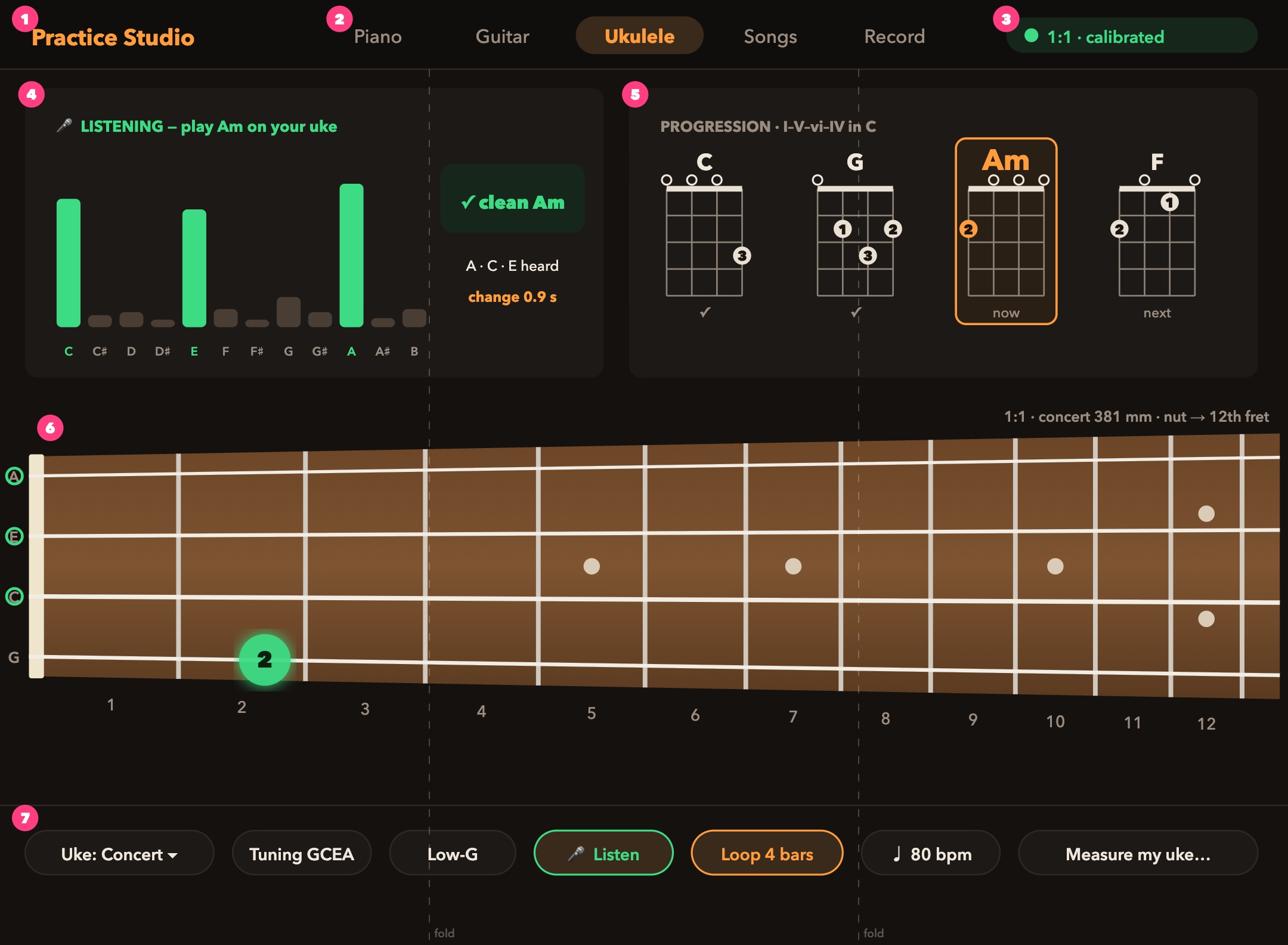
Screen C — Ukulele — full concert neck at 1:1 + mic listening
Full-size image: https://practice-plan.arnao.ai/mockups/screen-C.png
- C1 App name
- C2 Instrument tabs
- C3 Scale status
- C4 Mic listening: 12-note bars, green = expected notes heard, result + change time
- C5 Progression strip (C–G–Am–F) with ✓ for passed chords
- C6 1:1 concert neck, nut → 12th fret (fits entirely)
- C7 Controls: uke size, tuning, low-G, listen, loop, tempo, measure my uke
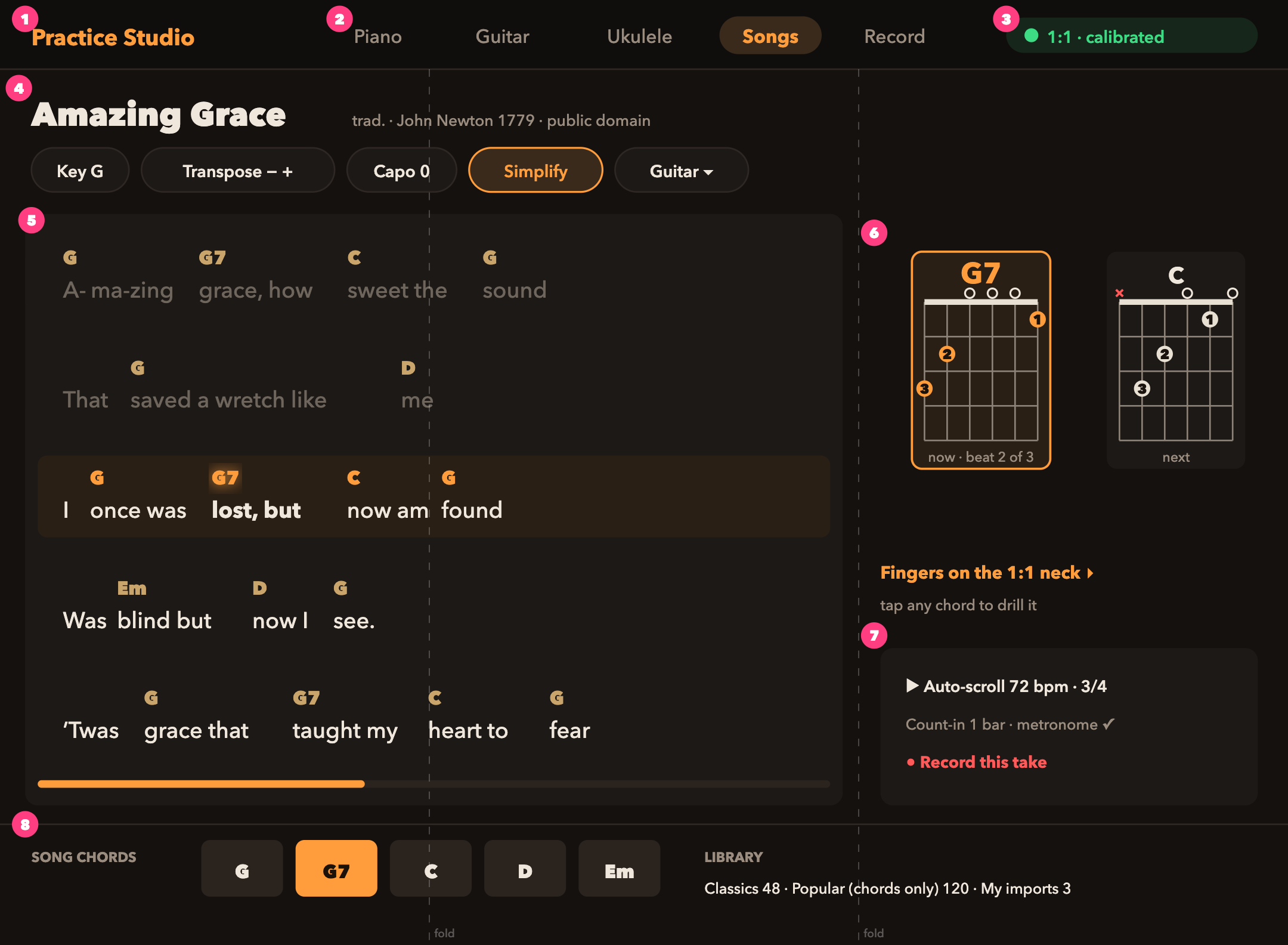
Screen D — Song player — Amazing Grace (public domain)
Full-size image: https://practice-plan.arnao.ai/mockups/screen-D.png
- D1 App name
- D2 Instrument tabs
- D3 Scale status
- D4 Title + Key / Transpose / Capo / Simplify / instrument
- D5 Lyrics with chords above; current line + current chord glow; progress bar
- D6 Now / next chord boxes; "fingers on the 1:1 neck" jump
- D7 Auto-scroll, count-in, metronome, record this take
- D8 Song chords strip + library counts
Screen E — Calibration — make 1 mm on screen = 1 real mm
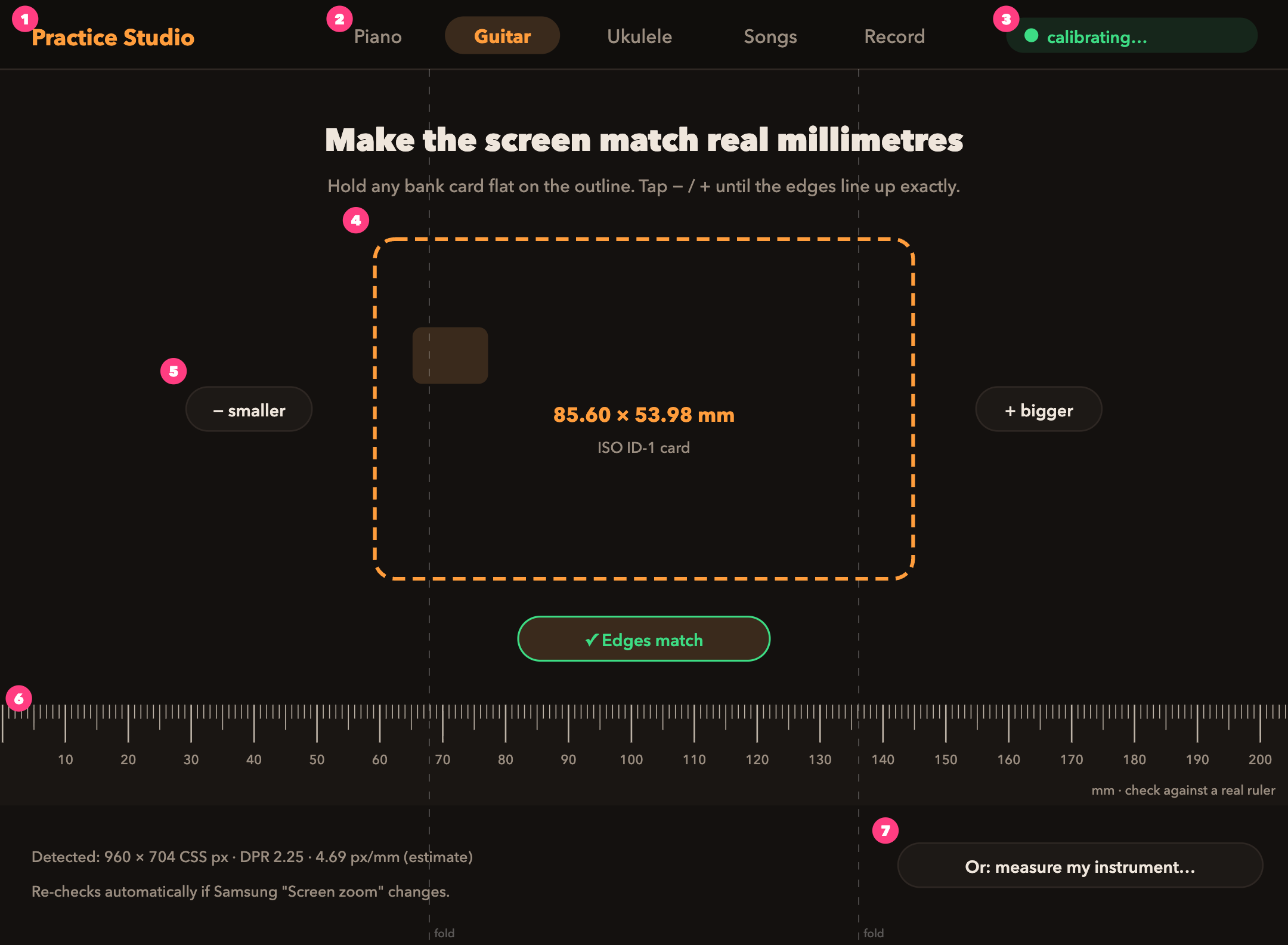
Full-size image: https://practice-plan.arnao.ai/mockups/screen-E.png
- E1 App name
- E2 Instrument tabs
- E3 Status: calibrating
- E4 Credit-card outline (85.60 × 53.98 mm)
- E5 Smaller / bigger nudge buttons
- E6 On-screen ruler (0–200 mm) to cross-check with a real ruler
- E7 Alternative: measure your instrument instead
To see true 1:1 size, open a full-size image on the TriFold, unfold it, and zoom so the image fills the screen edge to edge.




